Show what needs attention
Use photos, attachments and clear remarks to make the finding understandable.
GOSO · Observations
Record findings with photos, locations and priorities, then track them to closure.
Observations and Work Orders are included together in one GOSO package.

From the field to your team
Keep inspection findings, evidence and context in one shared record.
Use photos, attachments and clear remarks to make the finding understandable.
Connect the observation to its asset or location so your team knows where to look.
Review observations through shared views, priorities and statuses, within each person’s access rights.
Structured capture
Choose the fields and audience for your inspection, audit and reporting forms.
Scan QR codes or read NFC tags on compatible smartphones to add asset and location references without retyping.

QR codes and NFC tags use your project’s configured identifiers.
Smart tools for observations
Eight tools to reuse answers, share precise wording and guide inspections.
Start from your previous observation data or answers shared by other users in your project or entity. Reuse relevant fields and adapt them to the current situation, within your access rights.
Less repetitive entry. More time for what makes each observation different.
Keep favourite text ready to insert into form fields, from recurring remarks to complex standards references. Share favourites with project colleagues so useful wording can be reused across the team.
Consistent terms and complete references, without typing them again.
Create custom observation lists for an inspection, meeting or handover. Share them with project users and update their contents together, while each observation remains subject to its access rights.
Shared working lists that stay connected to the observations as they evolve.
Project administrators define private form fields and grant access to authorised people. Contract managers can keep internal notes and contractual follow-up alongside the observation, visible only to those allowed to access them.
Keep internal management in context, with controlled access to private fields.
Configure form fields with lookup lists of predefined values. Users select one or several entries, depending on the field configuration, to record categories, references and other project data consistently.
Fewer typing variations. Information that is easier to compare and filter.
Capture object references from QR codes and barcodes, or read NFC tags on compatible mobile devices. Use your project’s configured identifiers to bring the right reference into an observation.
Faster identification in the field, with less manual entry of reference codes.
Administrators create one or several inspection guides, organised into control points. For each point, they define reusable standard findings. Teams select the relevant point and one or more findings to describe the problem using a common, consistent vocabulary.
A shared inspection framework and ready-to-use findings: clearer observations, less repetitive writing.
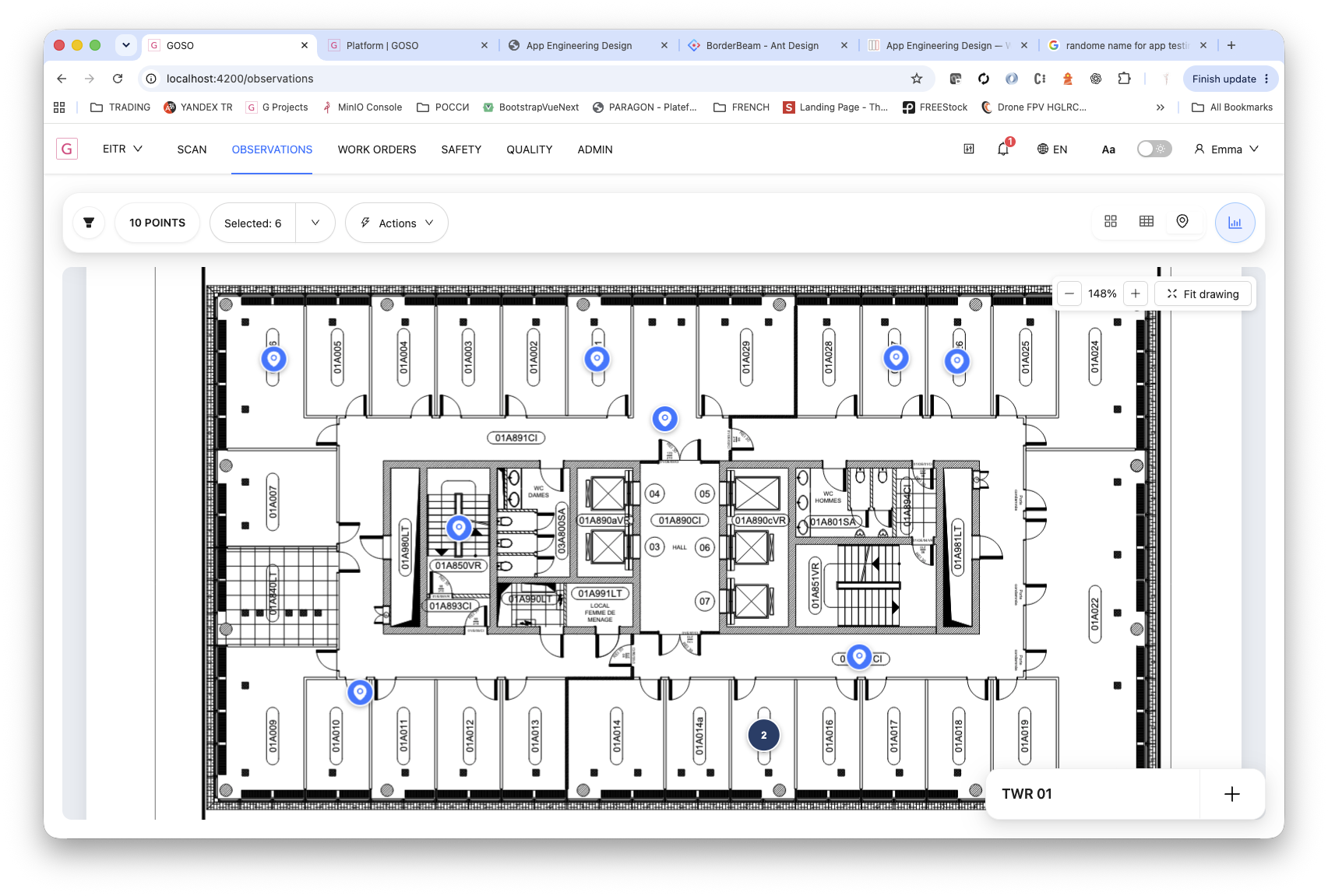
Once an observation is positioned on a plan for a room, machine, building element or process component, GOSO remembers that location. Identify the object again manually or by QR code, barcode or NFC: when a remembered location is available, GOSO suggests an approximate position on the plan.
A useful starting point to confirm or adjust in the field, based on a remembered position.
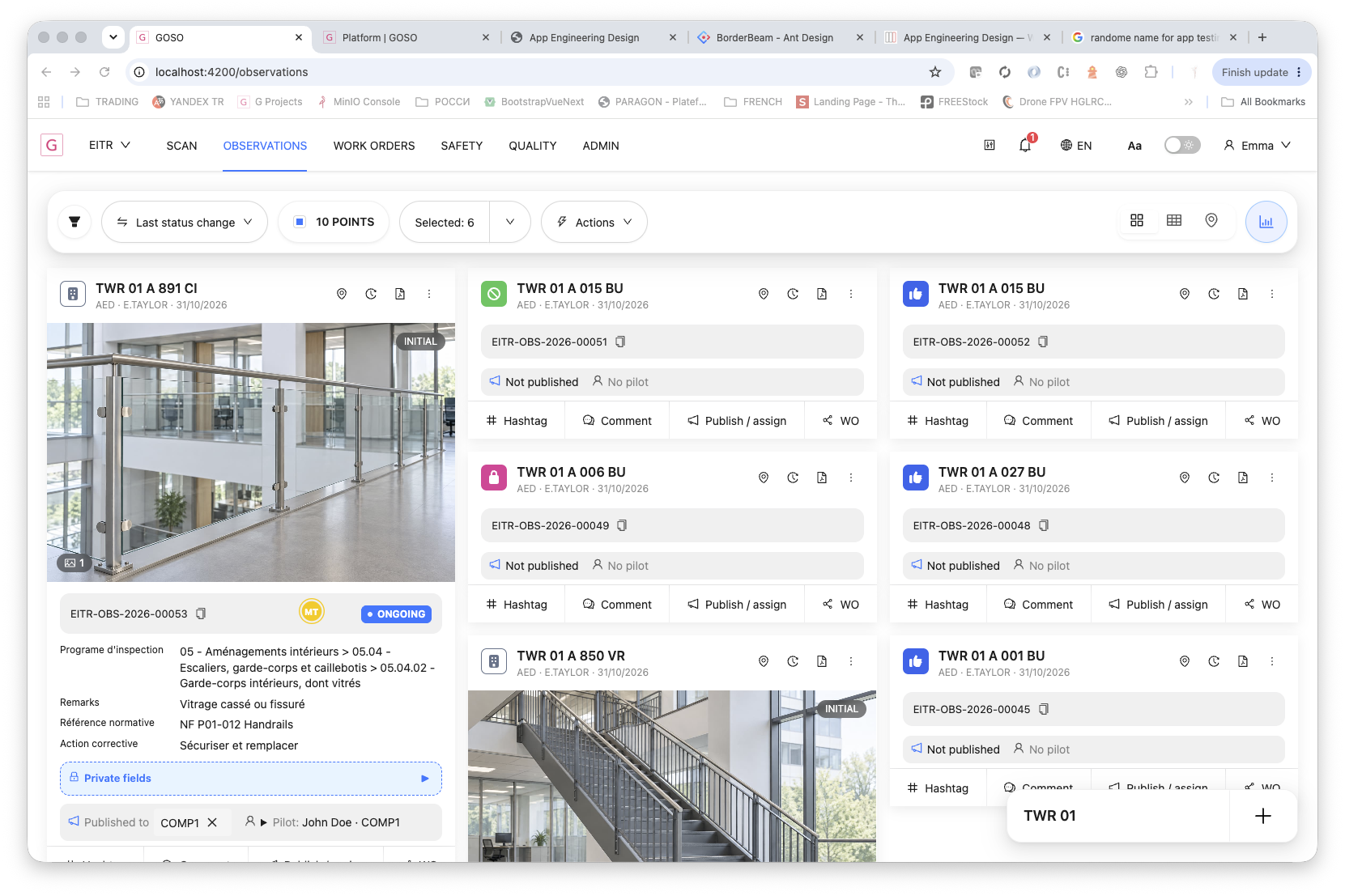
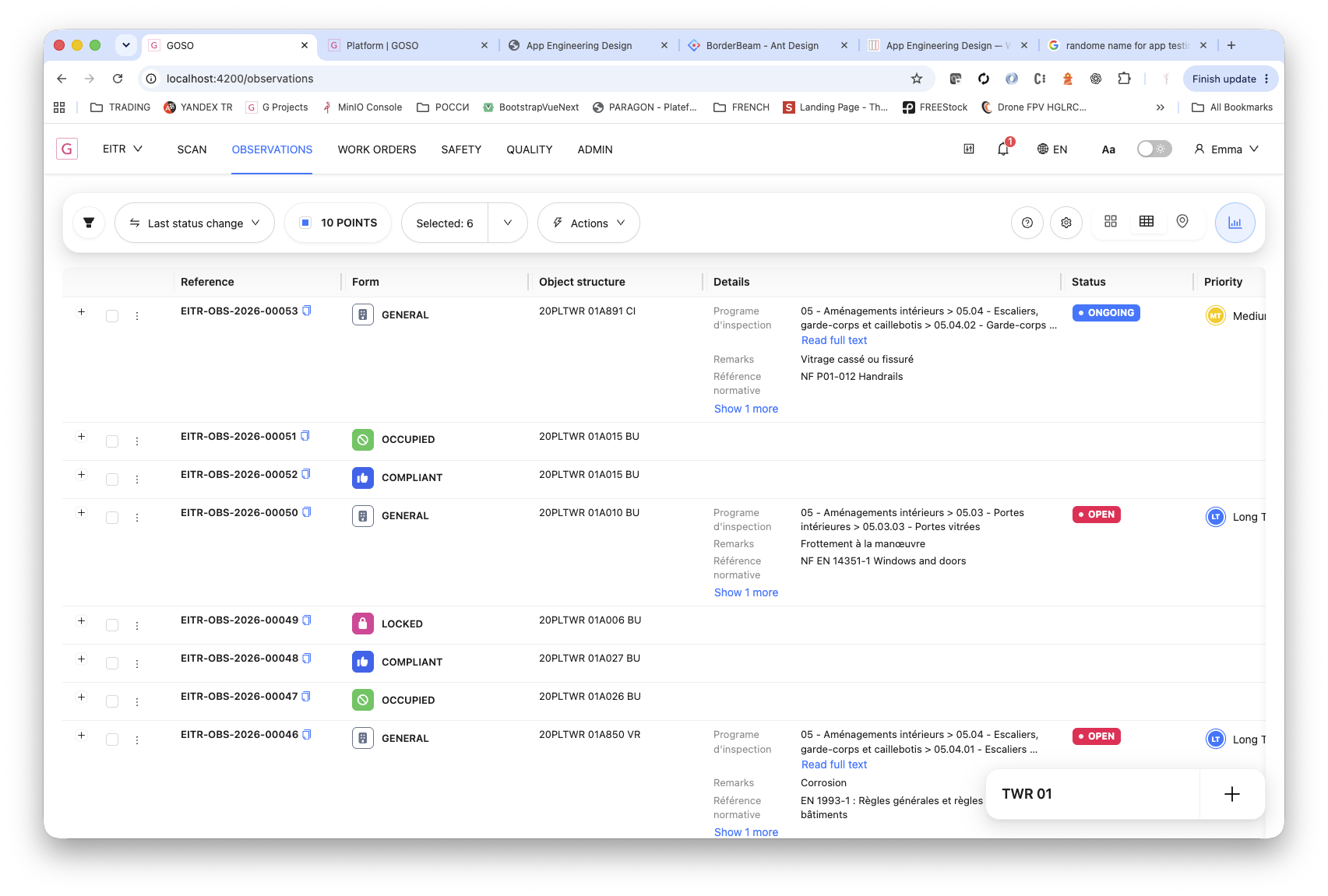
Explore the same observations as visual cards, a structured table or points on a plan. Choose the view that suits the task at hand.
Browse photos, remarks, statuses and priorities together to understand each observation at a glance.
Observation follow-up
Set project statuses and priorities, with closure reserved for authorised users.
See which observations need attention and follow them from the initial report to closure. The diagram illustrates one possible project configuration.
Statuses designated as closure statuses by the project administrator are reserved for users authorised to close an observation.
Customise status names, badge and text colours, display order, attention requirements, the initial status and closure statuses for each project.
Example lifecycle: OPEN is the initial status. OPEN, ADDRESSED, ONGOING, RE-OPEN and SOLVED require attention. ONHOLD, NOACTION and CLOSED do not require attention. In this example, OPEN leads to ADDRESSED or ONGOING, then SOLVED. An observation may also be put on hold, need no action or be reopened for further work. The arrows illustrate one possible workflow. Statuses designated as closure statuses by the project administrator are reserved for users authorised to close an observation.
Prioritise observations by urgency or project milestones. Customise names, abbreviations, shapes and colours to give your teams clear, shared reference points.
Observation analytics
Compare workloads, project areas and progress over time.
Review observation totals, status distribution and priorities to see what remains to be addressed.
Explore custom lookup values such as buildings, levels, zones or action strategies.
Use status progress curves to monitor how observations move through the workflow.
Export your observations on demand: complete Excel exports with associated photos and videos, individual PDF records and summary PDF reports.
Complete exports with associated photos and videos.
A document for an individual observation.
A consolidated overview for sharing and review.
Work with your data in your own tools and retain a copy in your own environment.
Observations + Work Orders
Link observations to work orders with the instructions, documents and evidence needed for execution and review.
Observations and Work Orders are included together in one GOSO package.